Adding Watermarks to PDF
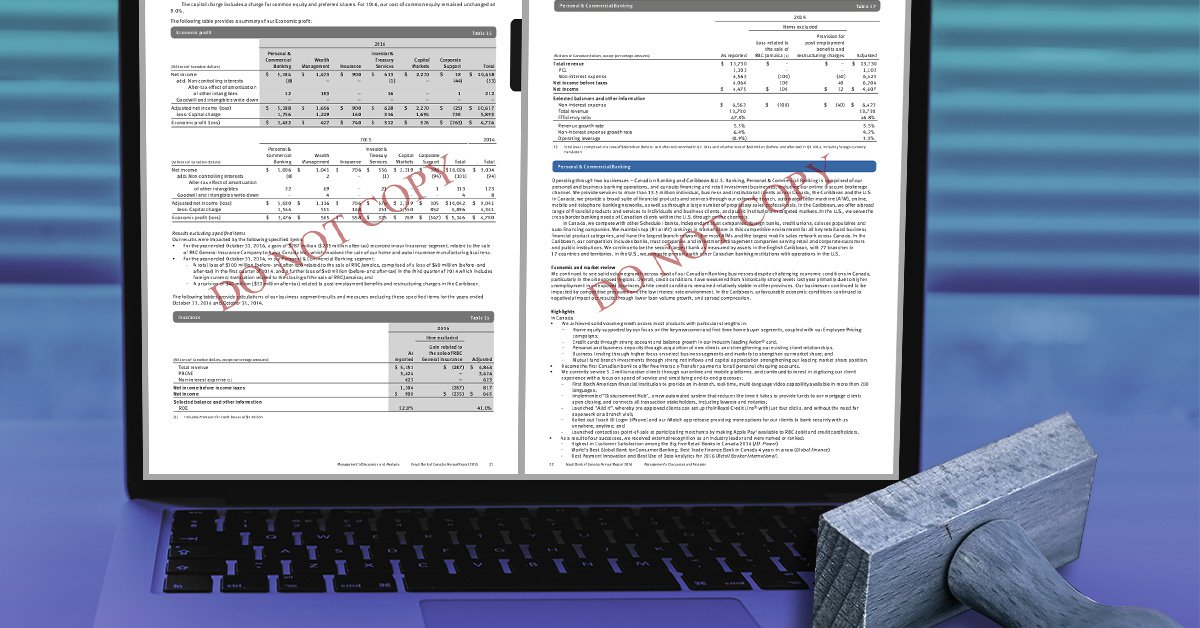
While the PDF is a reliable file type for presenting and preserving the look and feel of your documents on any device, ascertaining the proper use of your PDF documents is not that simple and requires specific security measures. As easy as it is to create PDF files, it can be difficult to ensure they won’t be altered or distorted once they are sent out and distributed to others.
The major concern for PDFs is security against alteration and misuse.
PDF Security and Watermarks: Things to Consider
As the PDF format is widely used at high levels of authority, it can contain material that is classified as confidential. Yet, the PDF is also used at a much more general and commercial level for online viewing and public access. Thus, PDF security measures exist in a wide range of options. Some users may set maximum security settings while others may only prohibit copying and pasting.
But what about the actual viewing of the PDF content and distinguishing between one highly sensitive document from another one that isn’t?
More importantly, how do you retain that distinction within hard copies? Once those documents get printed, you need some way of classifying the security and distinction which that document contains.
In all cases, adding a watermark to the PDF document can resolve the issue and act as a good control measure for categorization.
Branding a PDF with a Watermark
Branding your PDFs with watermarks also provides a good first step in protecting your intellectual property. Of course, you can set your PDF settings to restrict things such as printing and altering, but watermarking will help prevent the electronic abuse of your documents as well.
For online e-commerce purposes, the watermark can signify a number of things on a document: the kind of copy, whether a reprint or an original, the company authorizing the form, or the nature of the document (whether it’s a receipt, invoice, etc). Watermarks can play an ideal role in controlling forms that are printed up directly from a website.
Most notably, a watermark is hard to miss once it’s stamped onto the actual page. Whether printed or not, it leaves the classification of your entire file visibly taken care of.
How to Watermark PDF Using Able2Extract Professional
Able2Extract Professional allows its users to add watermarks to PDFs and customize the colour, font, angle, size and position of the watermark so that it appears on the document page with a professional look. Users can also determine the translucency or opacity of the watermark in order to control its specific appearance for either printing or viewing purposes, adding a bold or subtle effect.
Apart from basic PDF creation services, Able2Extract Professional offers the ability to stamp watermarks on already existing PDFs. Here’s how you can add watermarks to your important PDF documents with Able2Extract Professional:
Step 1
Run Able2Extract Professional and open the PDF file using the Open icon on the main toolbar.

Step 2
In the Review tab, click on the Add Watermark icon. After you’ve done so, an Add Watermark window will show up with options to fine-tune your watermark:
- Import an image or input your own custom text as a watermark
- Adjust the opacity, margin, and position of the watermark
- Modify the page range to which your watermark will apply
- Save and load custom watermark templates and more.
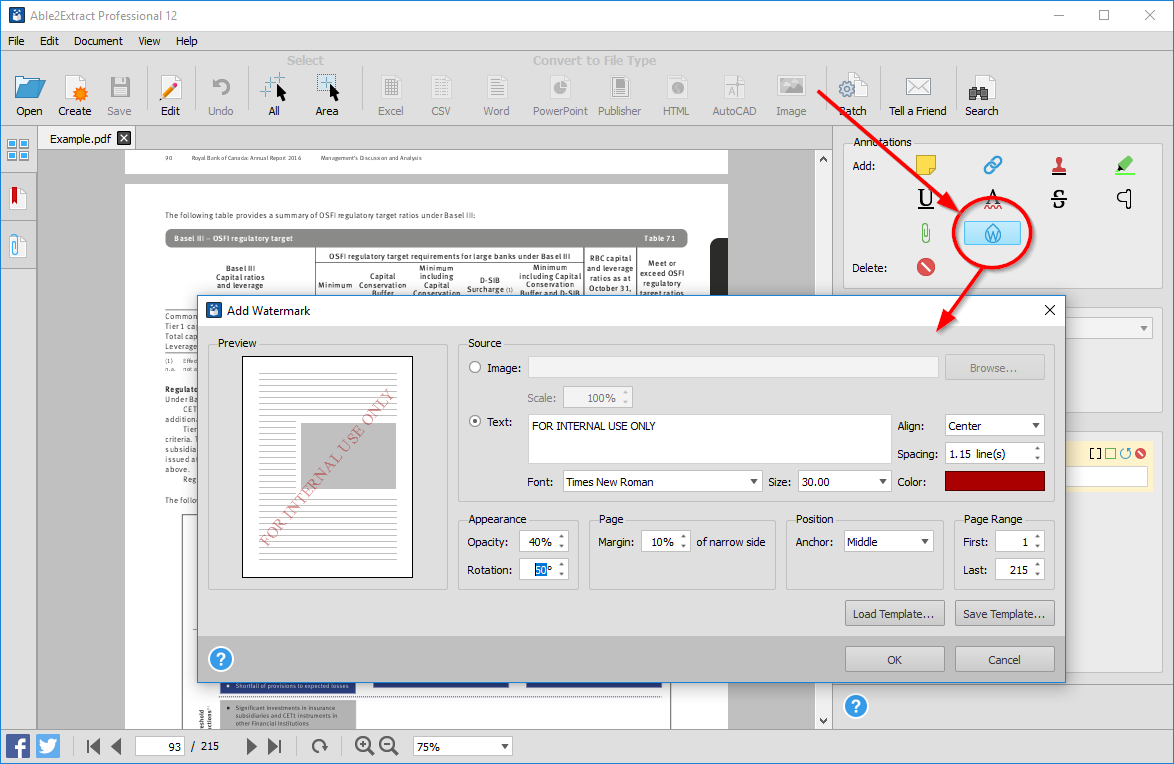
When you’re done customizing your watermark, click on OK to add watermarks to your PDF pages.
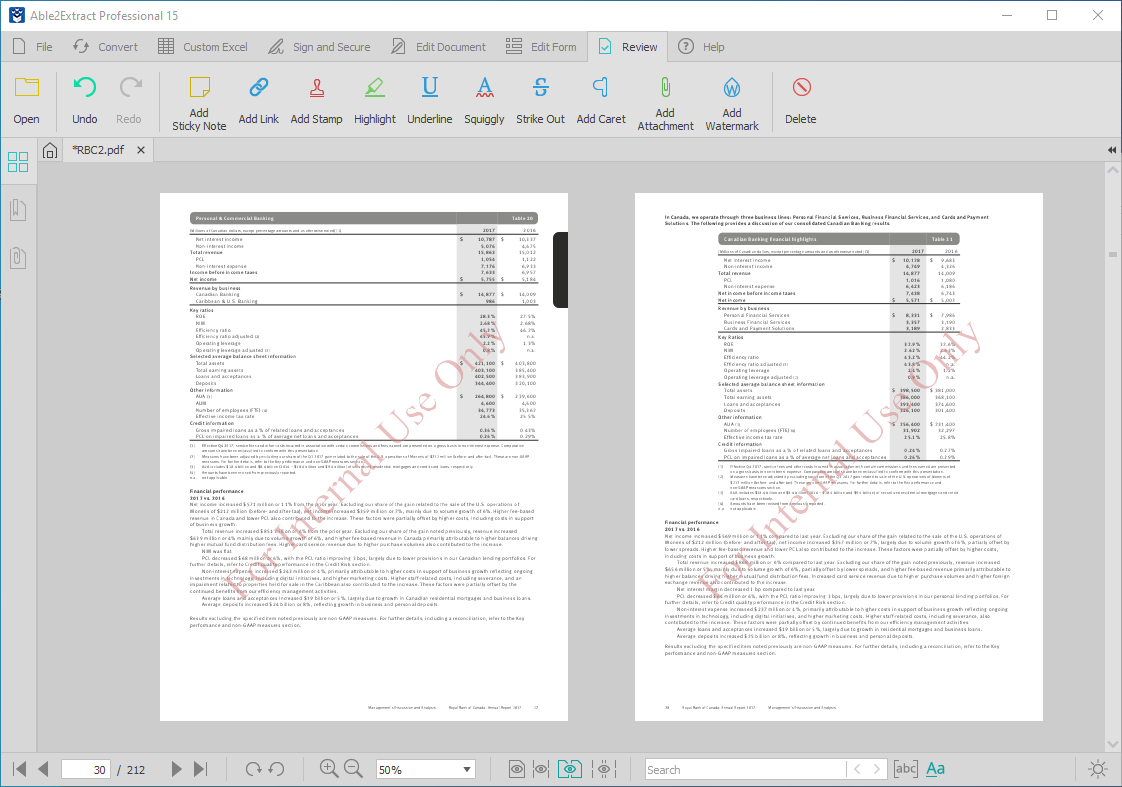
If you’re sharing sensitive documentation and need some guarantee that your PDF files won’t be altered, distributed for commercial purposes or misused in any other way, you should use a reliable software like Able2Extract Professional for adding watermarks to your documents.
It comes with a free 7 day trial! Start testing out and tailoring your document security just the way you need it.