The New Able2Extract 7 Is Here!

Now, it isn’t often that PDF conversion gets associated with simplicity. PDF converters are often too complex that only PDF experts can make full use of the software, leaving you stuck with using only the basic features for complex documents.

But, today we’re proud to announce the release of the latest version of our flagship product which eliminates that issue:Able2Extract 7.

In this new version, we’ve got enhanced conversion performance, a newly designed interface, and new and improved conversion capabilities.So whether you have a complex PDF to convert or a presentation due in the next hour, Able2Extract 7 can simplify and improve that conversion process.

This latest version of Able2Extract is the greatest improvement in our PDF conversion products to date.What’s new? What can it do? Read on.

First off, for those who have already used previous versions of Able2Extract, you’ll notice a newly designed user interface. The simple clean design makes it easier to navigate, search and convert your document.Open a file, select your data, and click to convert– all can be done from the toolbar.
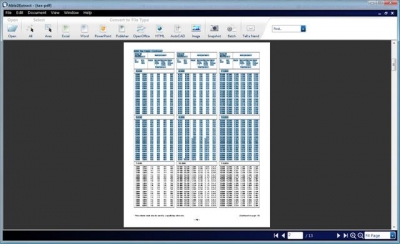
Able2Extract Interface

One major feature of Able2Extract7 is that it’s the first PDF converter which can convert to all major Microsoft Office formats: Word, Excel, PowerPoint and Publisher.
Able2Extract Formats

Here’s a sneak peek at the new conversion improvements.

PDF to PowerPoint conversions are faster and more accurate. For those who need a better PDF to PowerPoint output, this conversion feature has been rebuilt with custom options that offer better control over your content.

Improved Excel custom conversion options. As great as the custom Excel conversion options were in the previous version, Able2Extract 7 gives you even more control over the row and column structure of table data being converted.You can tweak your conversion right from the Excel conversion toolbar.

Able2Extract XLS Toolbar

Enhanced PDF to Word graphics and text manipulation features. We all know that as easy as a PDF to Word conversion may sound, it isn’t always the case. Thus, this latest version offers better conversion output and more precise graphics and text handling features.

New PDF to Publisher conversion. You’ve asked for it and here it is. Anyone needing a professional and cost effective publishing solution can now use Able2Extract 7 for PDF to Publisher conversions!
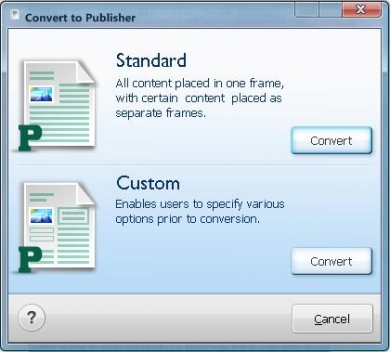
Able2Extract Publisher Conversion

And just as you can custom convert with Word, PowerPoint and Excel, you can also choose to custom convert with Publisher.

Performance wise, Able2Extract 7 can a lot more in a lot less space than most converters.In addition to all the conversion improvements, Able2Extract 7 can now support non-unicode font types.

This means users can convert PDF files in their native language: Chinese, Japanese, Korean, Arab and Greek. And despite these new features, the overall size of Able2Extract 7 has been reduced!

So check it out. The software is compatible with Windows 7 and Microsoft Office 2007. You can download Able2Extract 7 as a 7-day free trial to test out for yourself.
Are You Ready for Able2Extract 6.0?

A

Investintech users, get ready.

Today we release a brand new version of our Able2Extract flagship product– and have we got the features for you!

Able2Extract v.6.0 gives you more conversions, more control and more functionality. Here’s a peek at what the brand new features can do for you:

*Conversion to OpenOffice formats: If you’re a fan of software alternatives to Microsoft, this feature is exactly what you’re looking for.  Able2Extract v.6.0 will let you convert your PDF to Open Office formats like Writer and Calc.

*Batch conversion: Convert hundreds of PDFs at once with our batch PDF conversion interface and save yourself the time and money usually spent on converting one PDF at a time.

*Improved Vector Image Handling: By improving our existing image to Word conversion, you automatically gain more control over handling vector images once the PDF is in MS Word.

*Outlook Integration: Able2Extract v.6 can now help you with your PDF email attachments by converting them into Word, Excel and PowerPoint formats. All it takes is  a simple right click within your MS Outlook client.

*PDF to AutoCAD conversion: Our new PDF to AutoCad conversion will let you recover and then edit vector images by converting them into complex multilayer CAD files.

Sound like the tool for you? If you’re ready to convert your PDF files on a whole new level, you can start downloading your copy of Able2Extract v.6.0 today.

Converting Scanned AutoCAD PDFs With OCR

As the new 2008 year rolls on, so does the work and no doubt, the PDF conversions as well. Don’t worry, we’re at it too. And every now and again, amidst troubleshooting and developing, we get an email from clients having difficulties with AutoCAD PDFs:

“I downloaded and installed your Pro version as a trial.  When I tried to convert a PDF file which was an AutoCAD drawing scanned and saved as such, it seems as if it was working but it opens Excel and nothing is converted in?”

If you’re experiencing or have experienced the same problem without any luck, don’t give up yet. Here’s a conversion tip: try resizing the image-based/scanned PDF.

This is because AutoCAD files are usually created with huge page dimensions that measure up to 30″ by 40″. In addition, it is difficult for the OCR engine to determine the size (in points) of any letter on an OCR page.  So the OCR engine is oftentimes unable to extract legible text from AutoCAD documents due to the small text size (hence the empty Excel output).

The only way it can determine the size of the text is by comparing it relative to the size of a stated PDF page which the OCR engine can read and support. The OCR engine in Able2Extract Professional can only support AutoCAD file dimensions of up to 22″ by 22″.

To resize the PDF:

1) Open the PDF in either Adobe Reader or Acrobat

2) Select File > Print

3) Change the Printer Name to ‘Adobe PDF’ in the drop box

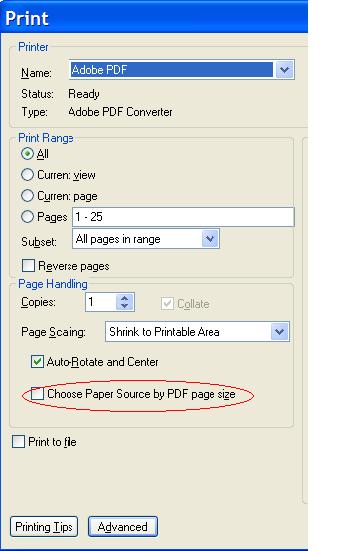
4) Under the Page Scaling section ensure that ‘Choose Paper Source by PDF page size’ is deselected

AutoCad Print

5) Click OK to print a new PDF

You can also resize the PDF with our trial version of Sonic PDF Creator 2.0.  After installing Sonic, select ‘Sonic PDF’ as a printer (as opposed to Adobe PDF in step 3).

After you’ve resized the PDF, try the conversion again.

Hope this tip helps!

Why Performing OCR On Handwriting Doesn’t Work

Unsurprisingly, OCR is consistently a hot topic in PDF and the PDF user mind in general. In paper intense work environments, PDF conversion and OCR engines have proven to be a successful work-around for transferring paper files into word processing applications. Thus, with the help of scanners and the PDF format, any and all types of paper work can be done electronically and efficiently. Or can it?

While trying to integrate and transfer every non-digital working habit into an electronic equivalent, there are still some things that just can’t be done with ease using the same everyday tools. For instance, what about converting hand printed/written documents?

Three Flavours Of OCR

Many of you have probably wondered why such a thing can’t be done with the OCR technology in PDF conversion products. Well, this is because OCR technology and devices are only capable of recognizing the machine printed characters and fonts. And seeing as how the number of documents that are being scanned in are usually typewritten, OCR is employed in almost all cases.

In other cases, there are documents that contain handwritten sections and/or fields that are used for collecting data—a thing being slowly superseded by the fill-able PDF form. You can create a digital copy from such a document simply by scanning it in, right? Yes. However, it requires a different recognition technology altogether. Using OCR, you can perhaps get maybe one letter to “OCR” into ASCII, if it’s printed clearly and written in ink that’s thick enough to be read. But that’s about it. This is where another flavor of OCR comes in: Intelligent Character Recognition.

ICR is a more advanced form of OCR that translates hand printed letters into digital ASCII equivalents. This version of OCR is primarily used for processing applications and forms on which you “print clearly” and place individual letters in boxes. This structured method of reading a hand printed document is one of the major limitations of the technology, but controls and reduces the amount of human errors that cause misinterpretations.

In addition, there are documents that contain handwriting—aka cursive writing. Can recognition on such documents be performed? The answer: Yes. The third flavor of OCR is IR (Intelligent Recognition), the latest generation of OCR technology to date. This is used to read unconstrained writing (text not contained in boxes) and uses the same methods to translate the characters into ASCII text. From my online searching, there are a good number of companies that provide full fledged OCR/ICR/IR solutions, which can be integrated with digital workflows.

Thus, if you’re looking to OCR handwritten PDFs, you’ll be sorely disappointed. The ability to do everything and anything with technology is perhaps the ultimate goal for developers and users. Practicing it, on the other hand, is perhaps the ideal goal for every worker bee out there. It’s sad to say, but there are some cases in which you can only do so much.

Able2Extract v.5.0 Is Here!

We are proud to announce that we have officially launched the upgraded version of our flagship products, Able2Extract and Able2Doc. It’s a whole new version on a whole new level with a whole new look!

New Able2Extract 5.0 Features

This latest 5.0 version is sporting newer, more advanced features that lets you convert your PDF into more formats than ever before. We’ve managed to pack this upgrade with a lot more conversion options. Like what?, you ask. Read on.

First off the list, Able2Extract v.5.0 now offers PDF to Image conversions. Our new PDF to Image converter can generate popular image file formats, such as JPEG, BMP, GIF, PNG, and TIFF. You can designate the output directory, set image DPI and perform black and white conversions.

Second, with Able2Extract v. 5.0, you can now view and convert Microsoft’s new XPS document format. Convert XPS with all the same output features and conversion settings by simply opening and converting the format as you would a regular PDF file.

Third, this latest upgrade can support PDF Forms conversion. You can convert interactive PDF forms to editable Word Documents which you can fill out, save and modify later on. This conversion feature has the ability to retain form elements, such as text fields, radio buttons, and checkboxes.

Our Able2Doc v.4.0 can perform the same PDF Forms to Word conversion, and can also support XPS to Word conversion capabilities. Ideal for those who are only looking to convert to Word and TXT file formats.

Go ahead and sample these new features for yourself. You can download the free trial, in either the Standard or Professional versions, and take it for a test run. For ordering, product , and pricing details, check out our site—it, too, has undergone a bit of remodeling.